 Zoetrope
Text and sound
Text
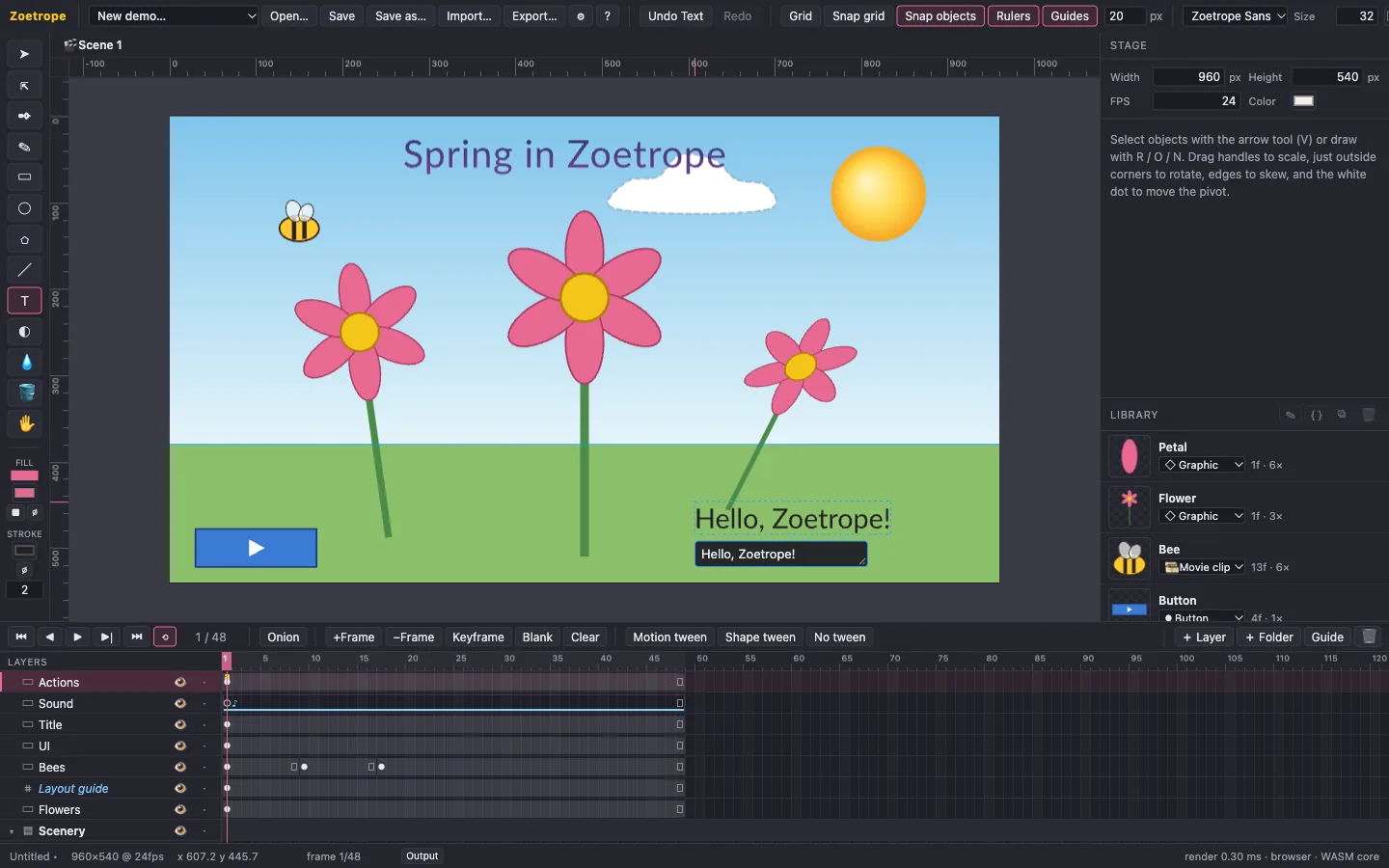
- Pick the Text tool (T). Click for text that grows as you type, or drag a box for text that wraps at its width.
- Type into the field under the box; the stage shows the real result as you type. Esc, ⌘↵ or clicking elsewhere finishes. An empty new text is discarded.
- Click an existing text with the text tool, or double-click it with the selection tool, to edit it.
- The toolbar sets the style for new text: font, size, color and alignment. A selected text shows all its settings in Properties: content, font, size, letter spacing, line height, box width (0 = automatic), alignment, and a solid or gradient fill.
Fonts
Text is laid out by Zoetrope itself, with kerning, ligatures and proper shaping, from fonts embedded in the project. Your animation looks identical on every computer and in every exported page, whether or not the font is installed there.
- The built-in font is Zoetrope Sans (based on Lato).
- Choose Import font… in any font menu to add a
.ttfor.otffile. Check that the font's license allows embedding before you publish.
Scripts can change a text's content: name it (e.g.
scoreText) and set scoreText.text = "Score: 3".Sound
Sounds are attached to keyframes. Click a frame on any layer (a dedicated "Sound" layer keeps things tidy), and in Properties under Sound pick a clip, or choose Import sound… to add a WAV, MP3, OGG, M4A or FLAC file.
| Setting | Meaning |
|---|---|
| Sync: Stream | Locked to the timeline: it plays only while its span is shown, and starting mid-span starts mid-sound. Use it for music and dialogue that must match the animation. A span shorter than the sound cuts it off; Properties tells you how many frames the clip needs. |
| Sync: Event | Starts from the beginning when the playhead enters the keyframe, then plays to the end whatever the timeline does. Use it for sound effects. Inside a movie clip, it follows the clip's own clock. |
| Volume, Loops | Level 0 to 100%, and extra repeats. |
The timeline marks keyframes with sound with ♪, and a line under the span for streams. Press ▶ to hear the result. Sounds on hidden layers are silent.
Browsers only allow audio after the viewer clicks or presses a key. An exported page starts silent until then, unless you export with Start on click (see Exporting).