 Zoetrope
Tutorial: a small game
Build "catch the star": move a ball with the arrow keys, touch the star to score, and watch the star jump somewhere else. You'll learn instance names, frame scripts, onEnterFrame, the keyboard and collisions.
1. Make the pieces
- New… → Blank project.
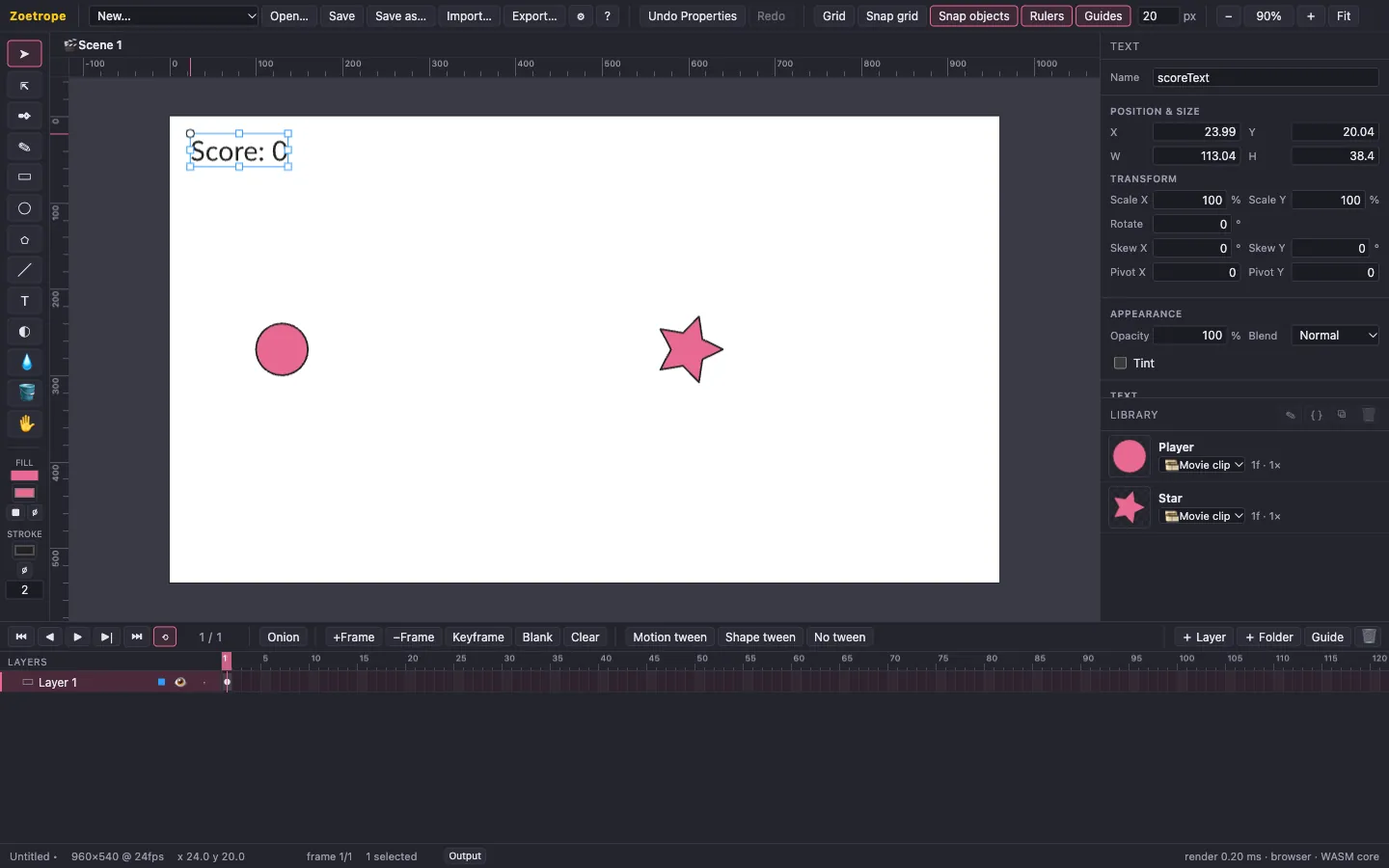
- The player. Draw a circle with the Ellipse tool (O, hold Shift). Select it (V), press F8, name it Player, choose Movie clip and convert.
- Name the instance. With the instance selected, type player in the Name field at the top of Properties and press Enter. Scripts find objects by this instance name, not by the symbol name.
- The star. Pick the Polygon tool (U), tick Star in the toolbar options, and drag out a star from its center. Convert it with F8 to a movie clip named Star, and give the instance the name star.
- The score. Pick the Text tool (T), click near the top-left corner, type
Score: 0and press Esc. Name the text scoreText.
2. Add an Actions layer
Keeping scripts on their own layer makes them easy to find.
- Click + Layer in the timeline bar, double-click the new layer's name and call it Actions.
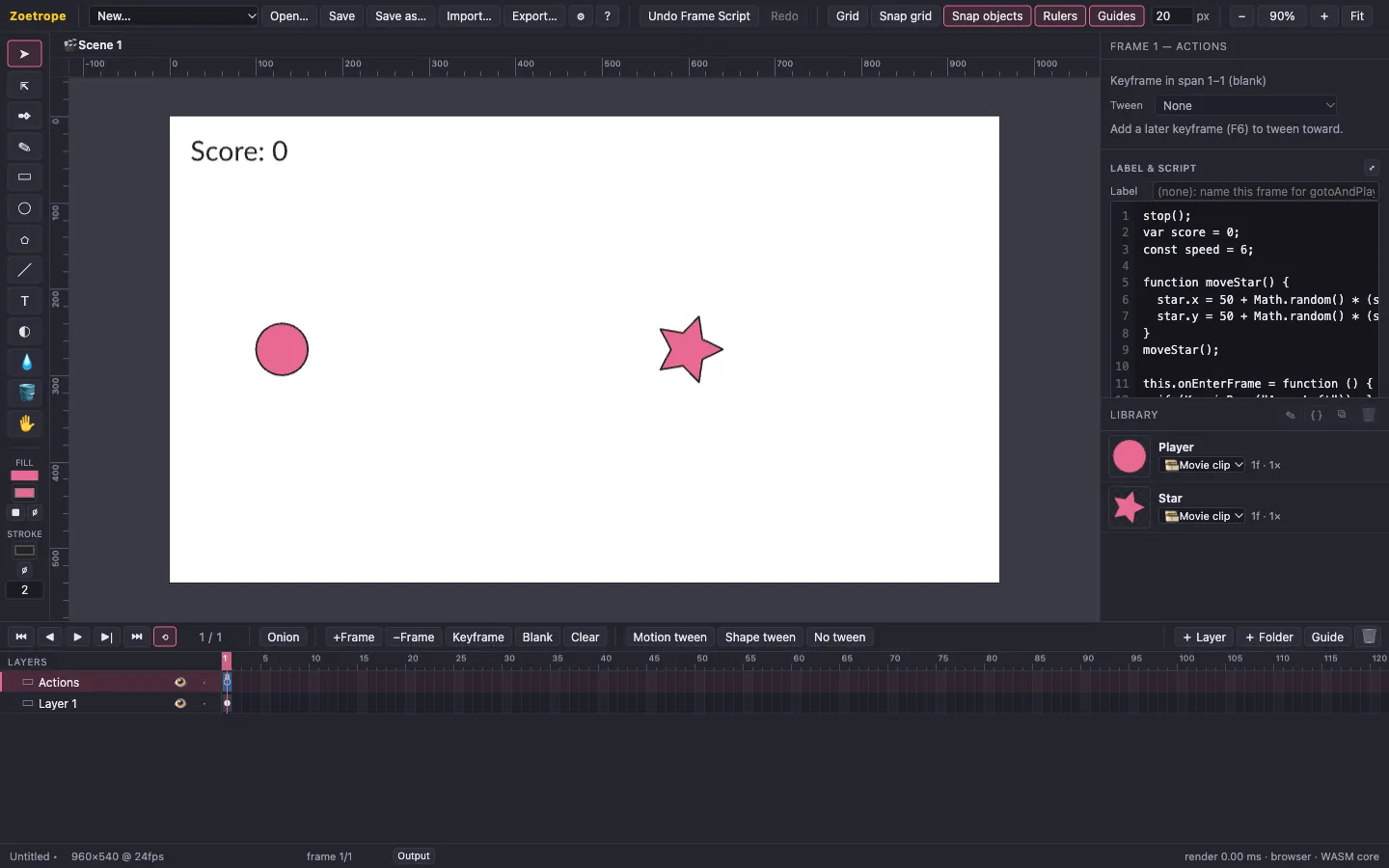
- Click frame 1 of the Actions layer. The Properties panel shows Label & script with a code editor.
3. Write the script
Type (or paste) this into the script editor, then press ⌘↵ / Ctrl+Enter or click Apply. Applying is one undoable step. The keyframe gets a small a marker in the timeline.
stop();
var score = 0;
const speed = 6;

function moveStar() {
  star.x = 50 + Math.random() * (stage.width - 100);
  star.y = 50 + Math.random() * (stage.height - 100);
}
moveStar();

this.onEnterFrame = function () {
  if (Key.isDown("ArrowLeft")) player.x -= speed;
  if (Key.isDown("ArrowRight")) player.x += speed;
  if (Key.isDown("ArrowUp")) player.y -= speed;
  if (Key.isDown("ArrowDown")) player.y += speed;

  if (player.hitTestObject(star)) {
    score += 1;
    scoreText.text = "Score: " + score;
    moveStar();
  }
};
What it does
- The script runs when the playhead enters frame 1.
stop()keeps the main timeline there. Here it has only one frame anyway, but it's a good habit. player,starandscoreTextare the instance names you set. Assigningstar.xmoves the star. From then on, the script, not the timeline, controls that property.var scorebecomes a property of the main timeline, so the function and the handler share it.constandletstay local to the script.this.onEnterFrameruns once per frame (24 times a second here).Key.isDownreads the keyboard, andhitTestObjectchecks whether the two objects' bounds overlap.
4. Play
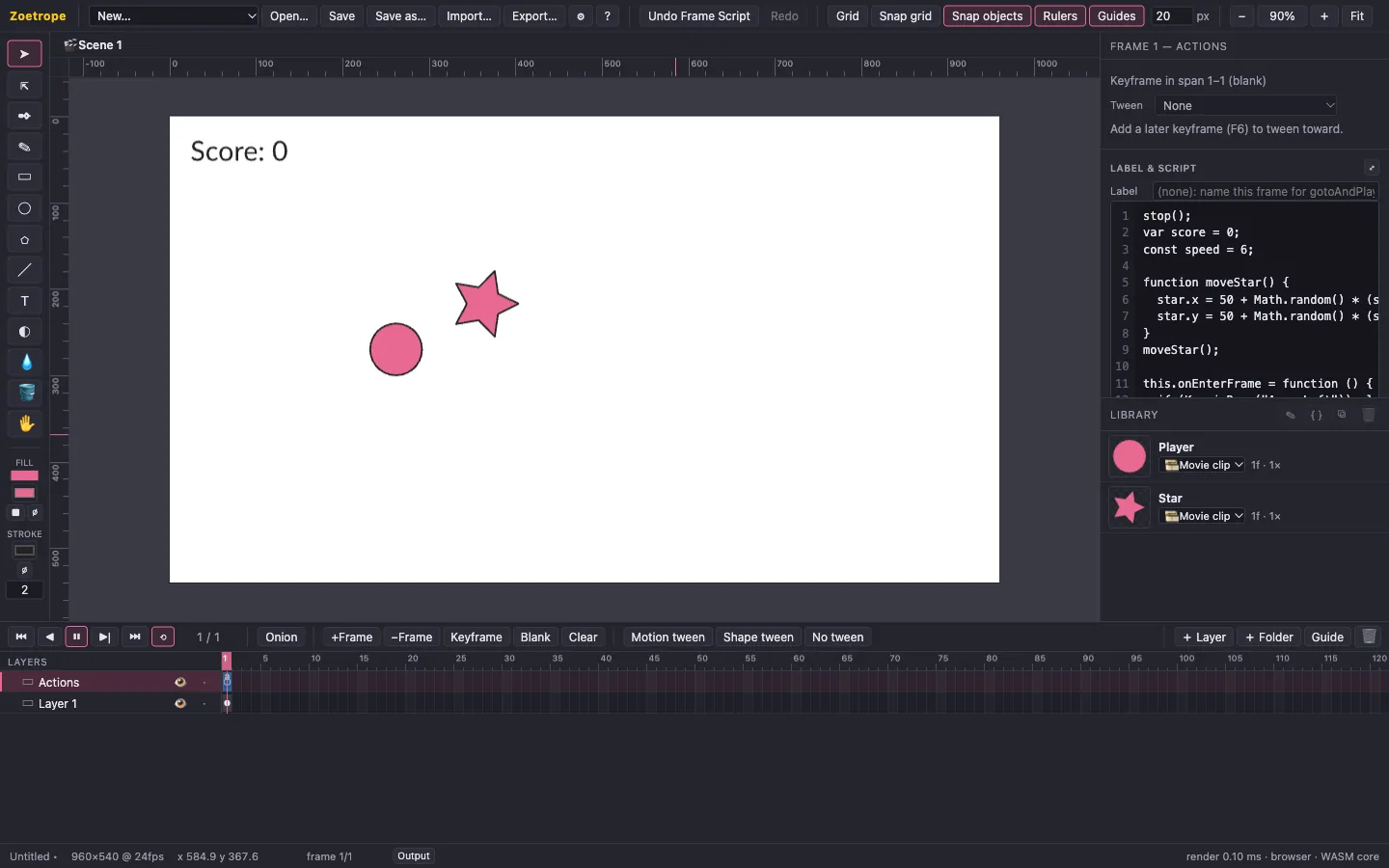
Press Enter. While the preview runs, the keyboard belongs to your movie: use the arrow keys to chase the star, and press Esc to stop. If something goes wrong, the Output panel opens with the error and its line number, and trace("…") prints there too.
5. Ideas to try
- Spin the star. Select the Star symbol in the Library, click { } and add a symbol script, which runs for every star instance:
this.onEnterFrame = function () { this.rotation += 4; }; - A timer. Count frames in
onEnterFrame, and when time runs out,gotoAndStop("over")to a second keyframe labelledoverthat shows the final score. The built-in Game demo does exactly this: open it with New… → Game demo and read its scripts. - A restart button. Make a Button symbol, name the instance, and set
restartButton.onClick = function () { … };.
When you're happy, export it. The exported page runs the same scripts with the same results. All the scripting details are in Scripting.