 Zoetrope
Symbols
A symbol is a reusable object with its own timeline. Place it as many times as you like; edit it once and every instance updates.
Creating symbols
- Select objects and press F8, or right away draw inside a symbol you're editing.
- Pick the type: Graphic, Movie clip or Button. You can change it later in the Library.
- Drag a symbol from the Library onto the stage to place another instance.
The three types
| Type | Its timeline… | Use it for |
|---|---|---|
| ◇ Graphic | …follows the parent's frames. Choose Loop, Play once or Single frame, and the First frame, per instance. | Lip-sync, walk cycles you scrub with the main timeline, reusable art. |
| 🎞 Movie clip | …runs on its own clock from the moment the instance appears, looping. Scripts can stop(), play() and gotoAndPlay() it. | Ambient loops (a bee's wings), anything scripted, characters. |
| ⏺ Button | …has four frames: Up, Over (pointer over it), Down (pressed) and Hit (the clickable area, never shown). | Clickable controls; wire them up with onClick. |
In the editor, movie clips show where they'd be if everything played straight through. Press ▶ to see them on their real clocks, with buttons responding and scripts running.
Editing in place
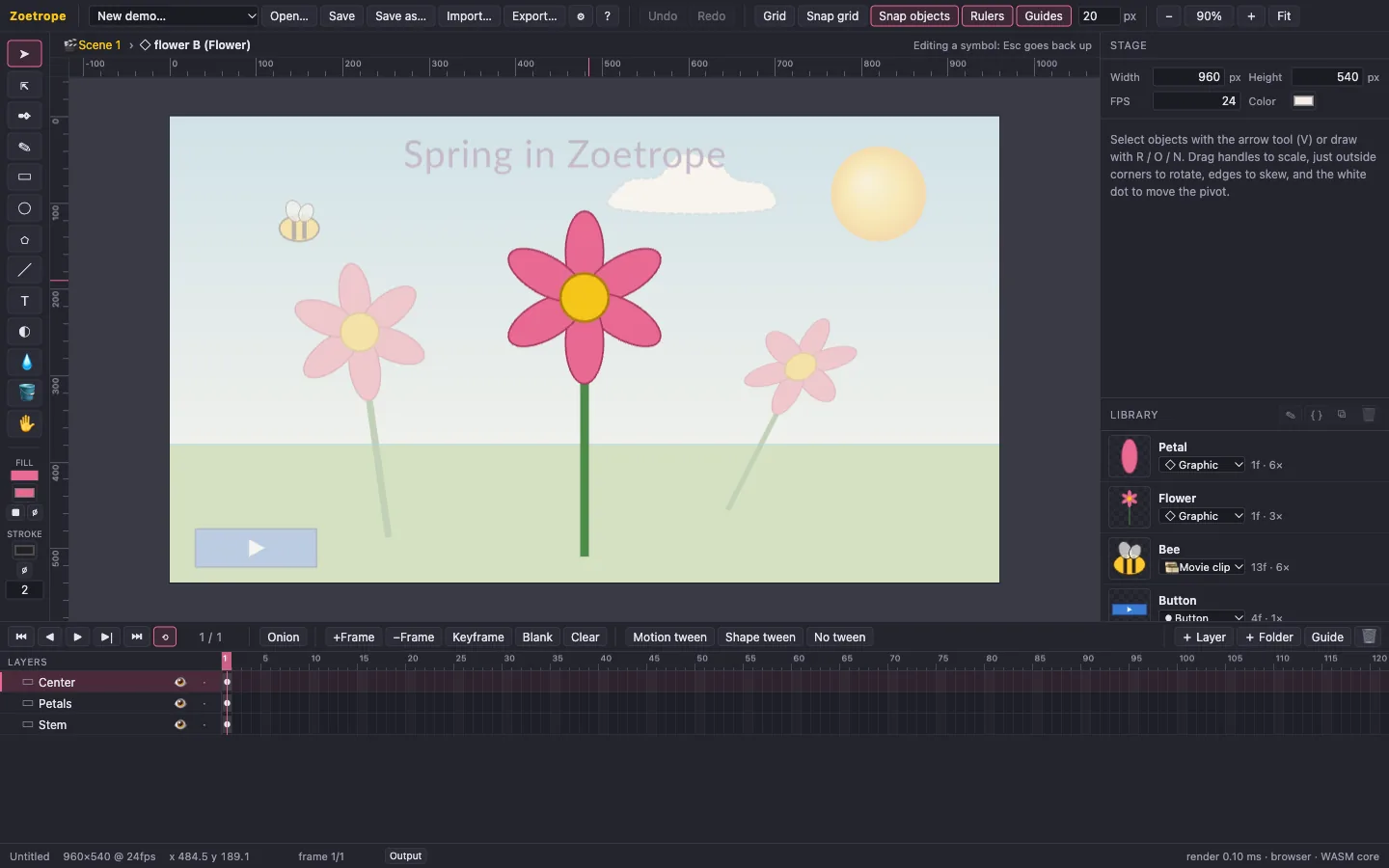
- Double-click an instance (or ⌘E) to edit its symbol in place. The rest of the scene dims, and the breadcrumb above the stage shows where you are.
- Double-click a symbol in the Library (or ✎) to edit it on its own.
- Esc, or a click on the breadcrumb, goes back up.
Instance properties
- Name: the instance name scripts use (
bee.x = 10). Names must be unique on a timeline to be useful. - Symbol: swap the instance to another symbol while keeping its position and transform.
- Transform, opacity, blend and tint apply to the whole instance, including everything nested inside.
The Library
Each entry shows a thumbnail, the type, its length in frames and how many times it's used. The buttons edit (✎), add a symbol script ({ }), duplicate (⧉) and delete (🗑; only when unused). Double-click a name to rename it.