 Zoetrope
Tutorial: your first animation
In about ten minutes you'll draw a ball, make it a symbol, animate it across the stage with a motion tween, give it a smooth ease, and export it as a web page.
1. Start a blank project
Choose New… → Blank project in the toolbar. You get a white 960 × 540 stage at 24 frames per second, with one layer called Layer 1 that is one frame long. (Change the size, frame rate or background color in Properties while nothing is selected.)
2. Draw a ball
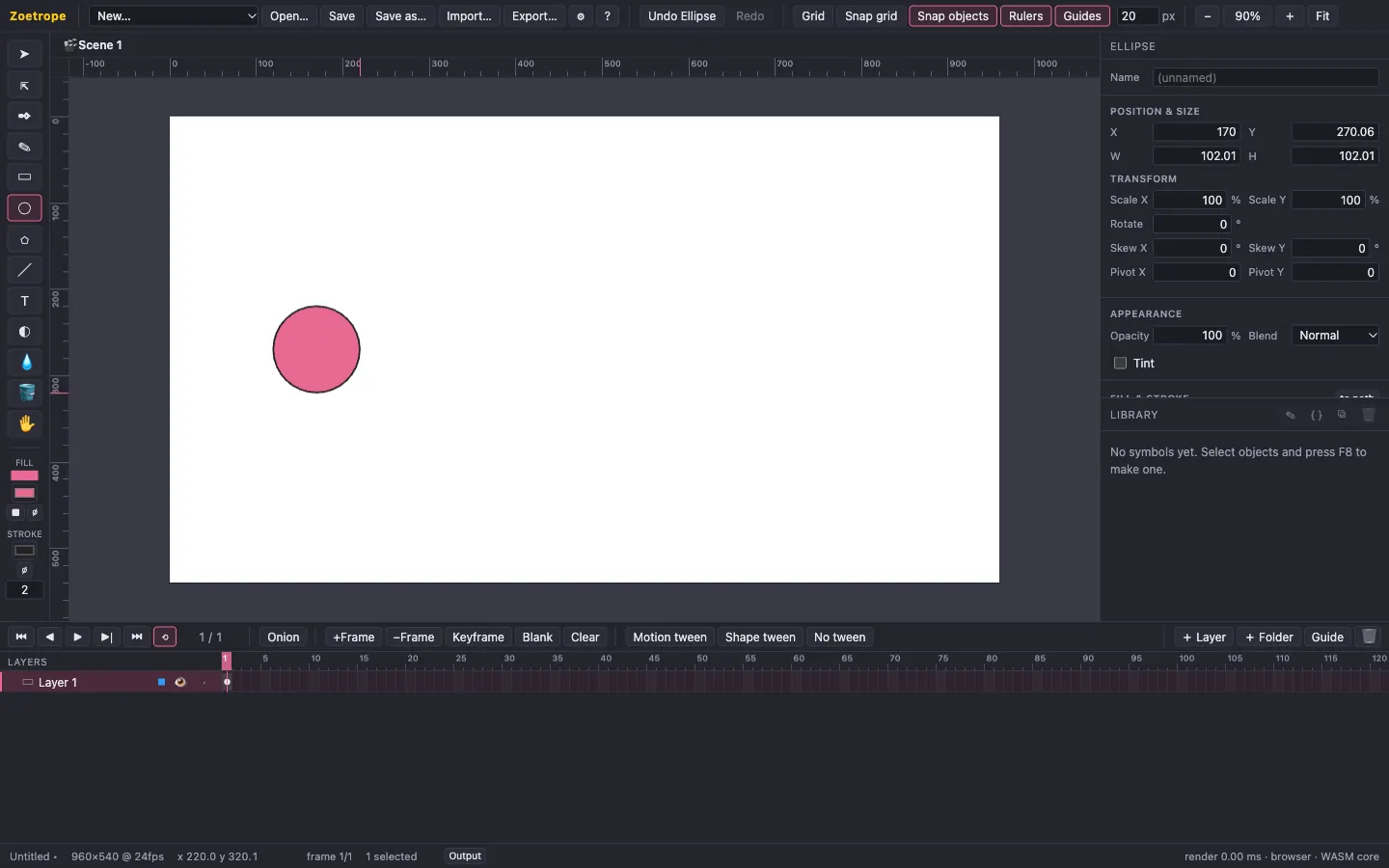
- Pick the Ellipse tool (O).
- Choose a fill color with the Fill swatch under the tools, and a stroke with the Stroke swatch (or click ⌀ for none).
- Hold Shift and drag on the left of the stage to draw a circle. Shift keeps it round; Alt/Option draws from the center.
3. Make it a symbol
Tweens animate symbol instances: reusable objects with their own timeline, a bit like components.
- Switch to the Selection tool (V) and click the ball.
- Press F8 (Convert to symbol). Name it Ball, choose Graphic and click Convert.
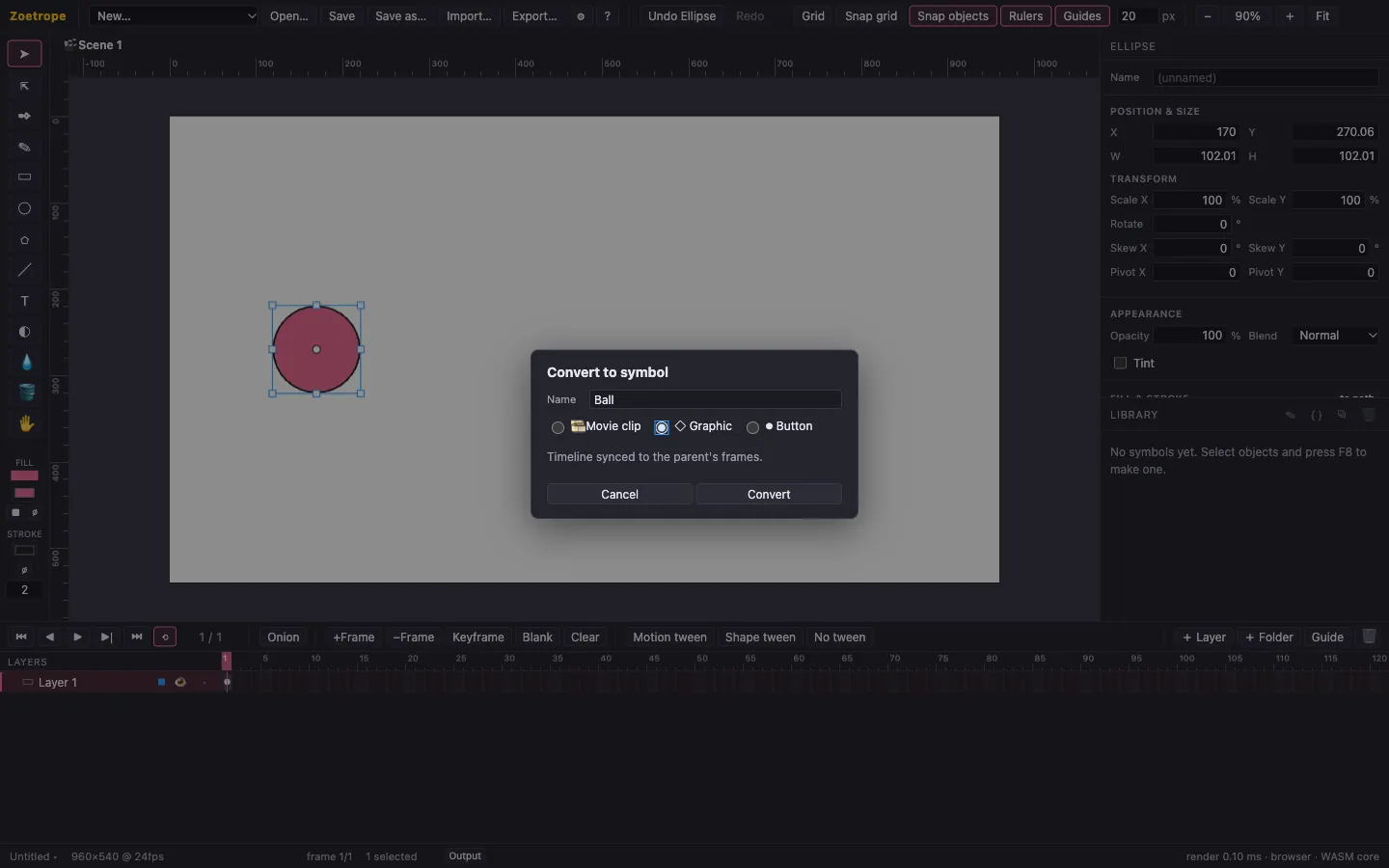
Ball now appears in the Library, and the object on stage is an instance of it.
4. Add a keyframe at frame 24
- In the timeline, click the cell for frame 24 on Layer 1 (the ruler above the cells shows frame numbers).
- Press F6 (Insert keyframe). The layer now spans 24 frames: a keyframe at 1, and a new keyframe at 24 holding a copy of the ball.
- With the playhead on frame 24, drag the ball to the right side of the stage.
5. Add a motion tween
- Click any frame between 1 and 23 on Layer 1.
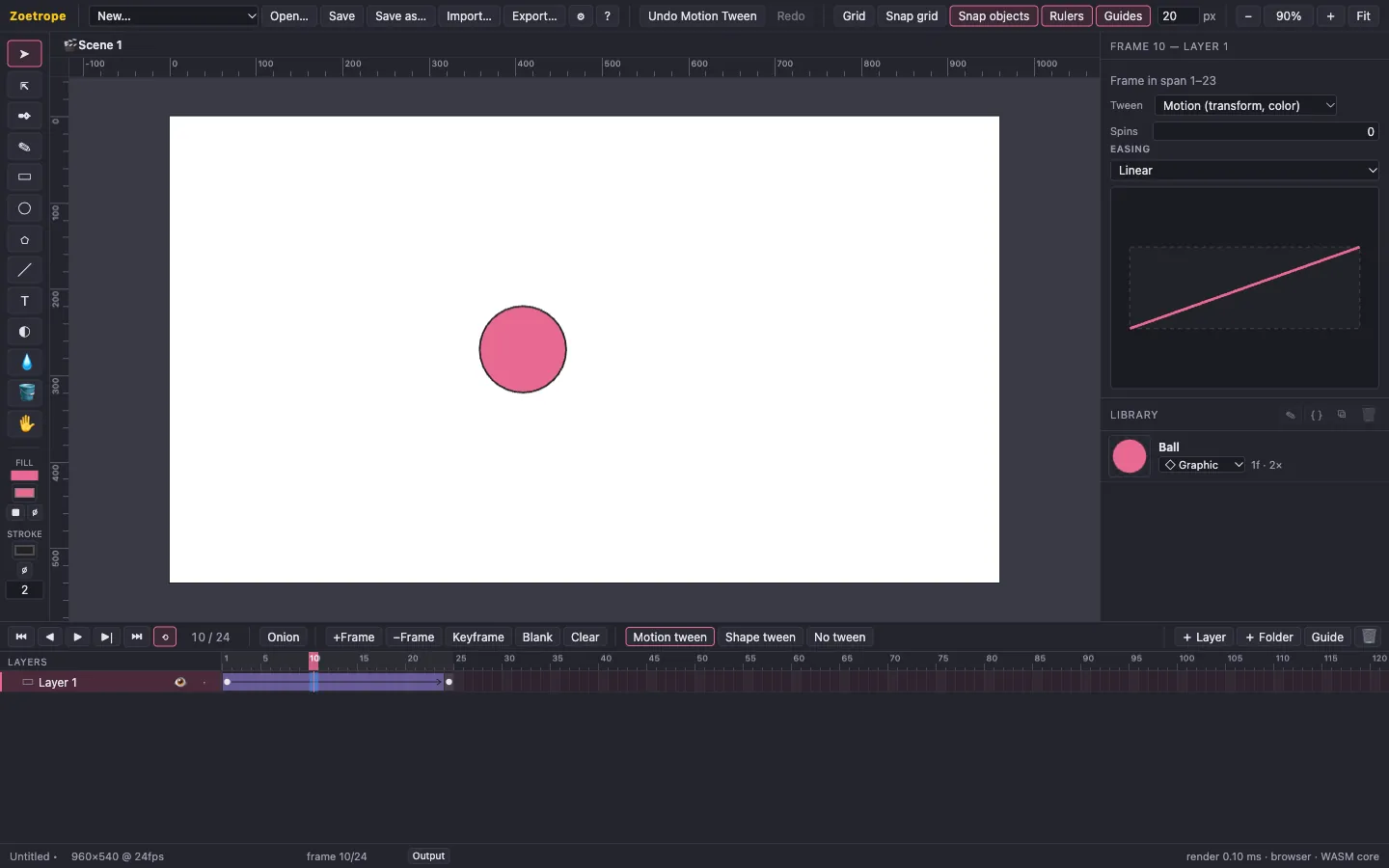
- Click Motion tween in the timeline bar. The span turns purple with an arrow: Zoetrope now interpolates the ball between the two keyframes.
- Scrub the playhead (click frames, or press , and .) to see the ball move.
6. Ease it
A linear tween looks mechanical. With a tweened frame selected, the Properties panel shows the tween's settings.
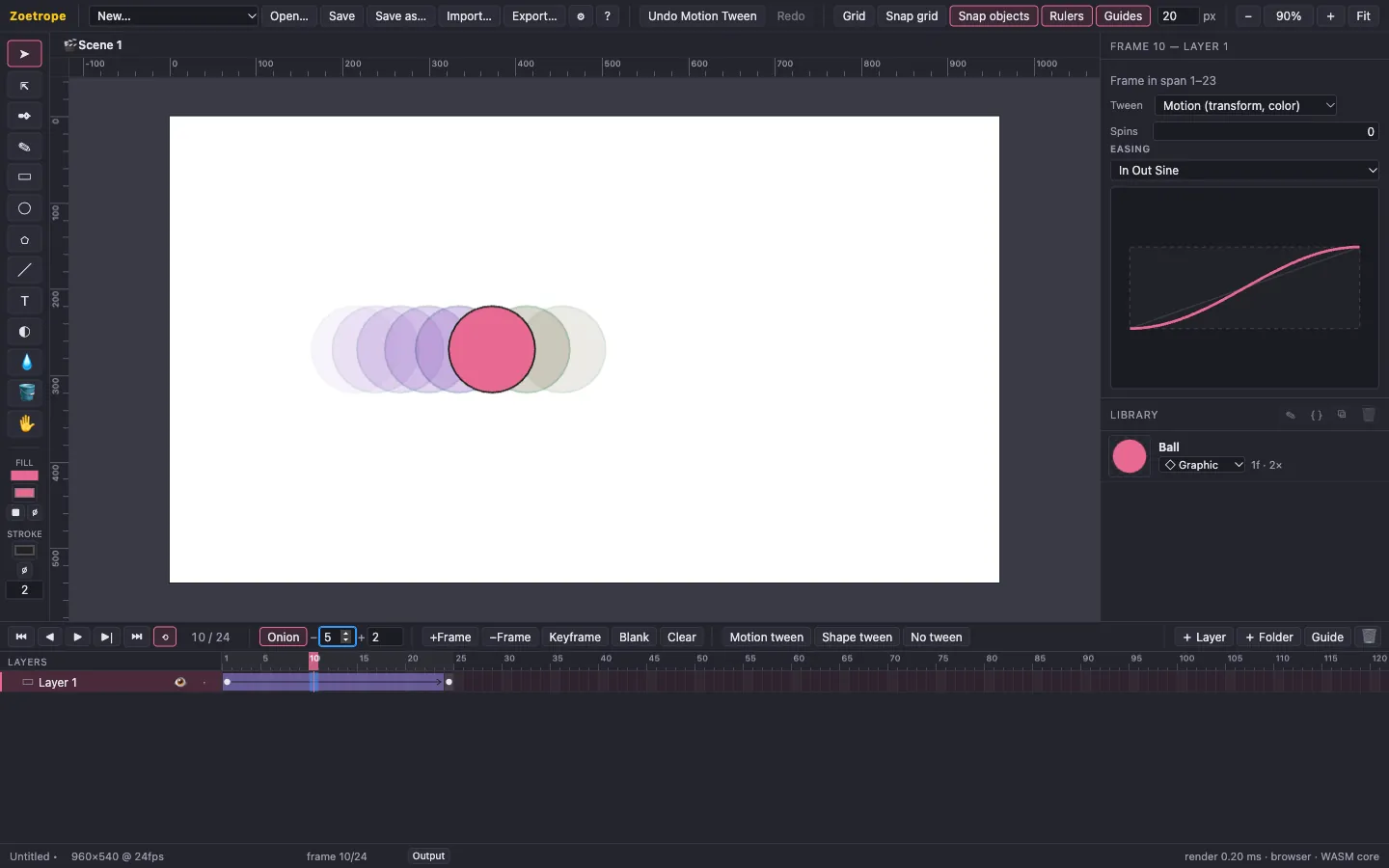
- Under Easing, choose In Out Sine: the ball starts slowly, speeds up, and settles gently. The curve shows progress (up) over time (right).
- Choose Custom (bezier) to drag the curve's handles yourself, or try Out Bounce or Out Elastic for something livelier.
- Turn on Onion in the timeline bar to see faded copies of the frames before (blue) and after (green) the current one. The numbers next to it set how many.
7. Preview, save and share
- Press Enter (or ▶) to play. Toggle the loop button next to the transport to loop or stop at the end. Press Esc to stop.
- Press ⌘S / Ctrl+S to save your project as a
.zoefile. - Click Export…, give it a title, keep Single HTML file, and export. Open the HTML file in any browser: that's your animation, ready to email, host or embed.
Going further
- Add Spins in the tween's properties to rotate the ball as it travels.
- Scale or recolor the ball at frame 24 (Appearance → Tint). Motion tweens interpolate position, scale, rotation, skew, opacity and tint.
- Use a Shape tween on raw shapes (not symbols) to morph one shape into another. See Timeline and tweens.
- Make the ball a Movie clip with its own animation inside, such as a squash on landing. See Symbols.
Next: make it interactive.